
An Arduino LED project is an excellent way to learn how to control electronic components using a simple program or sketch. In this beginner-friendly project, you will build a moving light display using an Arduino Uno, four LEDs, and four series resistors. The Arduino sketch switches the LEDs on and off in different patterns, creating a moving light effect that you can customize by changing a few lines of code.
This Arduino starter project requires only a handful of inexpensive components, a breadboard, and some connecting wires. It is suitable for beginners who want to learn about digital outputs, binary numbers, arrays, and programming with the Arduino IDE.
You can also use the techniques in this Arduino LED project to create running lights, alternating LED displays, and other simple lighting effects.
What Is an Arduino LED Project?
An Arduino LED project uses an Arduino board to control one or more light-emitting diodes (LEDs) through a program called a sketch in Arduino terminology. In this project, four LEDs are connected to digital pins 2, 3, 4, and 5 of an Arduino Uno, each with its own series resistor.
The sketch stores a sequence of LED on/off patterns in an array. The Arduino reads each pattern in turn and switches the four LEDs to match it. After displaying the last pattern, the sequence starts again.
This Arduino LED project produces several effects, including a light that moves back and forth, alternating LEDs, and combinations of LEDs that switch on together.
The project is useful for learning how digital outputs work because you can see the result of every programming change immediately. See the video below for a demonstration of the completed project with the pattern changing light pattern displayed on the LEDs.
Components Required for the Arduino LED Project
You need the following components to build the moving light display.
| Component | Quantity | Description |
|---|---|---|
| Arduino Uno or compatible board | 1 | Controls the LEDs |
| LEDs | 4 | 3 mm or 5 mm LEDs of any color |
| 470 ohm resistors | 4 | Limits current through the LEDs |
| Breadboard | 1 | Allows you to assemble the circuit without soldering |
| Breadboard jumper wires | As required | Connects the components |
| USB cable | 1 | Connects the Arduino to a computer for programming and power |
The original circuit uses 470 ohm resistors, but values between 220 and 470 ohms are generally suitable for this project with typical indicator LEDs and a 5V Arduino output. The appropriate value depends on the LED’s forward voltage, desired current, and the output pin’s electrical limits.
Important: Use one series resistor for each LED. Never connect an LED directly between an Arduino output pin and ground without a current-limiting resistor.
Building the Arduino LED Project Circuit
This Arduino Uno R3 project can be assembled on a solderless breadboard. No soldering is required, making it a convenient first electronics experiment.
Arduino LED Project Breadboard Layout
The four LEDs connect to Arduino digital pins 2 through 5. Each LED has its own series resistor, and the other side of each LED circuit connects to ground. Below is a diagram of the circuit built on an electronic breadboard.
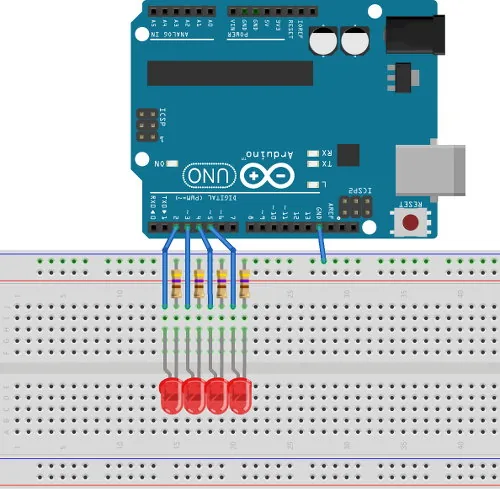
Follow these steps to assemble the circuit:
- Place the Arduino Uno and breadboard on your work surface, as the above image shows.
- Insert four LEDs into separate breadboard rows, leaving enough space to connect the resistors and jumper wires. Refer to the above diagram.
- Connect a 470 ohm resistor in series with each LED. That is, connect a resistor from the shorter leg or lead of each LED to the negative or GND rail of the breadboard.
- Connect the four LED circuits to Arduino digital pins 2, 3, 4, and 5, using one pin for each LED. In other words, use a jumper wire to connect the longer pin of each LED to its own Arduino pin, from pin 2 to pin 5.
- Connect the negative or GND rail of the breadboard to an Arduino GND pin.
- Check the LED polarity. The anode is usually the longer lead, while the cathode is usually the shorter lead. The cathode is also commonly identified by a flat edge on the LED body.
- Check all connections before connecting the Arduino to USB power.
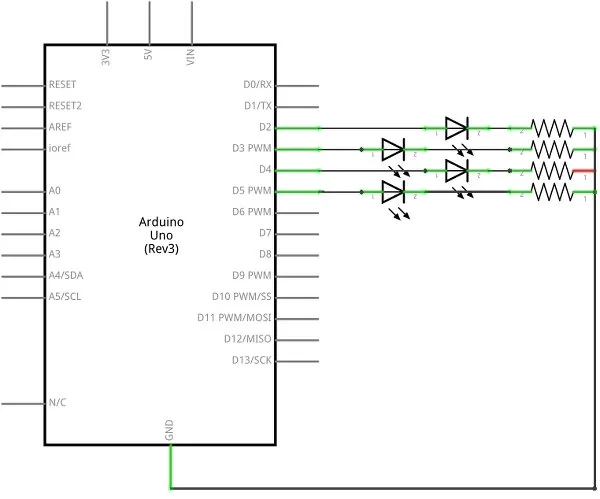
The electrical path for each LED should include an Arduino output pin, a series resistor, the LED, and ground. The resistor can be placed on either side of the LED as long as it remains in series.
Arduino LED Project Circuit Diagram
The circuit diagram of the above breadboard layout is shown below. It consists of four similar LED branches. Each branch is controlled independently by one Arduino digital output.
When an output pin is set to HIGH, current can flow through its LED and resistor to ground, switching the LED on. When the output is set to LOW, the LED switches off.
The program or sketch that follows changes the states of all four outputs to produce the moving light display.
Uploading the Arduino LED Project Sketch
Once the circuit is assembled, upload the sketch to the Arduino Uno.
- Download and install the Arduino IDE if you have not already done so.
- Connect the Arduino Uno to your computer using a suitable USB cable.
- Open the Arduino IDE and create a new sketch.
- Copy the complete code below into the editor.
- Select the correct Arduino board and serial port from the IDE menus.
- Click Verify to compile the sketch.
- Click Upload to transfer the program to the Arduino.
After uploading, the LEDs should begin displaying a repeating sequence of patterns.
Complete Arduino LED Project Code
The following sketch uses an array to store the LED patterns. A function named DisplayPattern() reads one array element at a time and updates the four digital output pins.
//---------------------------------------------------------------------
// Program:      moving_light_display
//
// Description:  Flashes four LEDs connected to Arduino pins 2 to 5
//               in various patterns.
//
//               Starting Electronics
//               https://startingelectronics.org/arduino-led-project/
//---------------------------------------------------------------------

// Change the speed of the pattern display in milliseconds.
#define SPEED_MS 300

// Change or add LED patterns here.
unsigned char led_pattern[] = {
  0x01, 0x02, 0x04, 0x08,
  0x04, 0x02, 0x01, 0x00,

  0x06, 0x09, 0x06, 0x09,
  0x06, 0x09, 0x06, 0x09,

  0x05, 0x0A, 0x05, 0x0A,
  0x05, 0x0A, 0x05, 0x0A
};

void setup() {
  // Set Arduino pins 2 to 5 as outputs.
  for (int i = 2; i <= 5; i++) {
    pinMode(i, OUTPUT);
  }
}

void loop() {
  DisplayPattern(led_pattern, sizeof(led_pattern));
  delay(SPEED_MS);
}

void DisplayPattern(unsigned char *pattern, int num_patterns) {
  static int pattern_num = 0;  // Keeps track of the current pattern
  unsigned char mask = 1;      // For testing each bit in the pattern

  // Control the LEDs connected to pins 2 to 5.
  for (int i = 2; i <= 5; i++) {

    // Check whether the corresponding bit is set.
    if (pattern[pattern_num] & mask) {
      digitalWrite(i, HIGH);
    }
    else {
      digitalWrite(i, LOW);
    }

    // Move the mask to the next bit.
    mask <<= 1;
  }

  // Select the next pattern for the next call.
  pattern_num++;

  // Restart at the beginning when all patterns have been displayed.
  if (pattern_num >= num_patterns) {
    pattern_num = 0;
  }
}The sketch is designed for the standard Arduino Uno environment. It does not require an external library.
The sizeof(led_pattern) expression returns the number of bytes occupied by the array. Since each array element is an unsigned char, it also gives the number of patterns in this particular array.
The function uses this value to return to the first pattern after reaching the end of the sequence. You can add or remove patterns without manually changing a separate pattern count.
Understanding How the Arduino LED Project Works
The sketch uses three important programming concepts: digital outputs, arrays, and bitwise operations.
1. Setting the LED Pins as Outputs
The setup() function runs once when the Arduino starts or resets.
void setup() {
  for (int i = 2; i <= 5; i++) {
    pinMode(i, OUTPUT);
  }
}The for loop sets pins 2, 3, 4, and 5 as outputs. These pins can then be controlled using digitalWrite().
The loop avoids repeating the same pinMode() instruction four times. The first time through the loop, the variable i has a value of 2, so 2 is passed as the first parameter to the pinMode() function. As a result, pin 2 is set up as an output pin. The for loop increments i by one and the second time though the loop 3 is passed to the pinMode() function, setting up pin 3 as an output pin. The loop repeats two more times setting up pin 4 and 5 in the same way.
2. Storing LED Patterns in an Array
The array contains a sequence of hexadecimal values. A small sample of the values from the original sketch is shown in the code below.
unsigned char led_pattern[] = {
  0x01, 0x02, 0x04, 0x08,
  0x04, 0x02, 0x01, 0x00
};Each value represents the on/off states of the four LEDs. The complete sketch contains additional values to create even more patterns.
An array is a convenient way to store a sequence of data that a program can process repeatedly. Instead of writing separate instructions for every LED combination, the program reads the next value from the array.
This is one of the main ideas you can learn from this Arduino programming for beginners exercise.
3. Reading the Pattern with Bitwise Operations
Each hexadecimal value contains four relevant binary bits. The program uses a bit mask to test each bit individually.
For example, the hexadecimal value 0x05 is equivalent to the binary value 00000101. Its four least significant bits are 0101, so the LEDs connected to pins 2 and 4 switch on while the LEDs connected to pins 3 and 5 switch off.
The mask starts at 1 and shifts left after each LED:
unsigned char mask = 1;
mask <<= 1;This lets the program check one bit at a time. The least significant bit controls pin 2, the next bit controls pin 3, the third bit controls pin 4, and the fourth bit controls pin 5.
4. Repeating the Display
The loop() function repeatedly calls DisplayPattern() and waits for the specified delay.
The function remembers which array element it displayed using the static variable pattern_num. After displaying a pattern, it increments the variable. When the end of the array is reached, the variable returns to zero.
The result is a continuous moving light display that repeats automatically until the Arduino is switched off or reset.
Changing the Arduino LED Project Display Speed
You can change the speed of the moving light display by editing this line near the beginning of the sketch:
#define SPEED_MS 300The number represents the delay in milliseconds between pattern updates.
| Value | Delay | Effect |
|---|---|---|
100 | 0.1 seconds | Fast pattern changes |
300 | 0.3 seconds | Original display speed |
500 | 0.5 seconds | Slower pattern changes |
1000 | 1 second | Very slow pattern changes |
For a fast-moving light effect, try values between 100 and 200. For a slower display that makes each combination easier to observe, try 500 or 1000.
The delay applies after the Arduino updates the LEDs, so the total time between updates is approximately the selected delay plus the small amount of time required to execute the code.
Changing the Arduino LED Project Patterns
One of the most useful features of this Arduino LED project is that you can change its appearance without modifying the circuit.
Edit the values in the led_pattern array to create your own sequence. You can remove existing values, repeat patterns, or add new ones.
The sketch automatically determines the number of array elements, so you do not need to update a separate count when you change the array.
Understanding the Hexadecimal LED Patterns
Four LEDs can produce different on/off combinations. These include the combination where all LEDs are off and the combination where all four LEDs are on.
The table below shows all 16 combinations. LED 1 corresponds to Arduino pin 2, LED 2 to pin 3, LED 3 to pin 4, and LED 4 to pin 5.
| Hexadecimal | Binary | LED 1 (Pin 2) | LED 2 (Pin 3) | LED 3 (Pin 4) | LED 4 (Pin 5) |
|---|---|---|---|---|---|
0x0 | 0000 | Off | Off | Off | Off |
0x1 | 0001 | On | Off | Off | Off |
0x2 | 0010 | Off | On | Off | Off |
0x3 | 0011 | On | On | Off | Off |
0x4 | 0100 | Off | Off | On | Off |
0x5 | 0101 | On | Off | On | Off |
0x6 | 0110 | Off | On | On | Off |
0x7 | 0111 | On | On | On | Off |
0x8 | 1000 | Off | Off | Off | On |
0x9 | 1001 | On | Off | Off | On |
0xA | 1010 | Off | On | Off | On |
0xB | 1011 | On | On | Off | On |
0xC | 1100 | Off | Off | On | On |
0xD | 1101 | On | Off | On | On |
0xE | 1110 | Off | On | On | On |
0xF | 1111 | On | On | On | On |
The binary digits in the table are shown with the most significant bit on the left. In the program, the least significant bit controls LED 1 on pin 2.
For example, the hexadecimal value 0x3 has the binary representation 0011. The two least significant bits are set, so LEDs 1 and 2 switch on while LEDs 3 and 4 remain off.
Creating a Moving Light Pattern
The first eight entries in the original array create a light that moves from one end of the four-LED row to the other and then moves back.
unsigned char led_pattern[] = {
  0x01, 0x02, 0x04, 0x08,
  0x04, 0x02, 0x01, 0x00
};The values 0x01, 0x02, 0x04, and 0x08 switch on one LED at a time. The next values move the illuminated LED back toward the beginning, followed by a brief all-off pattern.
You can create a different effect by changing the sequence. For example, this pattern alternates between the first and third LEDs and the second and fourth LEDs:
unsigned char led_pattern[] = {
  0x05, 0x0A, 0x05, 0x0A,
  0x05, 0x0A, 0x00
};The value 0x05 switches on LEDs 1 and 3. The value 0x0A switches on LEDs 2 and 4. The final 0x00 switches all four LEDs off.
You can combine different values to create a longer display sequence. Keep in mind that the same array is used for the entire display, so replace the original array rather than adding a second declaration with the same name.
Tips for Arduino LED Project Success
Use these practical tips when building and experimenting with your circuit.
- Check LED polarity: LEDs only conduct correctly in one direction. If an LED does not light, check that its anode and cathode are connected correctly.
- Use a resistor for every LED: Each LED needs its own series resistor to limit current and protect the LED and Arduino output pin.
- Start with a slower display: Set
SPEED_MSto 500 or 1000 while learning how the patterns work. - Change one thing at a time: Modify either the speed or the pattern array, upload the sketch, and observe the result.
- Use the hexadecimal table: Refer to the 16 combinations when creating your own sequences.
- Check the pin assignments: The program expects LEDs on pins 2 through 5. If you connect them to different pins, update the code accordingly.
- Verify the sketch before uploading: The Verify button in the Arduino IDE can help identify syntax errors before you transfer the program.
- Disconnect power before rewiring: Unplug the USB cable before moving components or changing breadboard connections.
These techniques also apply to other Arduino LED patterns and make this project a useful foundation for more advanced microcontroller experiments.
Did You Know?
A four-LED display can produce 16 unique on/off combinations, even though the circuit contains only four LEDs. Adding one more independently controlled LED doubles the number of possible combinations to 32.
This happens because each LED has two possible states: on or off. For independently controlled LEDs, the number of combinations is .
Arduino LED projects also demonstrate a principle used in many digital systems. A program can represent several on/off states as binary data, then use individual bits to control physical outputs. Similar techniques are used for status indicators, control signals, and digital interfaces.
The same array-based approach can be extended to more LEDs, provided the hardware has enough suitable output pins or uses an additional device such as a shift register.
Frequently Asked Questions
Can I build this Arduino LED project with an Arduino Uno R3?
Yes. The circuit and sketch are suitable for an Arduino Uno R3. Connect the four LEDs to digital pins 2, 3, 4, and 5, with a series resistor for each LED and a connection to ground.
Other compatible Arduino boards may also work, but their output voltage, pin assignments, and electrical limits should be checked before connecting the circuit.
Do I need to know programming to build this project?
No previous programming experience is necessary. You can begin by copying the sketch into the Arduino IDE and uploading it. Once the circuit works, experiment with the delay value and array entries to learn how the program controls the LEDs.
Why are resistors needed in an Arduino LED circuit?
A resistor limits the current flowing through each LED. Without a suitable resistor, excessive current could damage an LED or an Arduino output pin.
The original project uses 470 ohm resistors, which provide a conservative current for many typical indicator LEDs powered from a 5V Arduino output.
How can I make the LEDs change faster?
Reduce the value of SPEED_MS near the beginning of the sketch. For example, changing 300 to 100 reduces the programmed delay between patterns from 300 milliseconds to 100 milliseconds.
How do I create my own LED patterns?
Edit the hexadecimal values in the led_pattern array. Each value represents the on/off states of the four LEDs. Use the hexadecimal pattern table in this article to choose the combination you want to display at each step.
Why does the moving light display repeat continuously?
The Arduino repeatedly executes the loop() function. The DisplayPattern() function advances through the array and returns to the first element after reaching the last one, causing the sequence to repeat.
Can I use different LED colors?
Yes. You can use red, green, yellow, blue, or other standard indicator LEDs. Different LED colors have different forward voltages, so check the LED specifications and use suitable current-limiting resistors.
Can I use more than four LEDs?
Yes, the idea can be expanded to more LEDs. However, you must provide enough suitable output pins or use an external device such as a shift register. The array format and bit mask must also be adjusted to represent the additional LEDs.
Conclusion
This Arduino LED project demonstrates how to build a moving light display using an Arduino Uno, four LEDs, four series resistors, and a simple sketch. By combining digital outputs, an array of hexadecimal patterns, and a short delay, you can create a sequence of different lighting effects.
The project is an excellent Arduino starter project because it combines practical circuit assembly with basic programming concepts. You can change the speed, design new patterns, and experiment with the 16 possible combinations of four LEDs without altering the hardware.
Once you understand how the sketch works, you will have a useful foundation for more advanced Arduino LED patterns, digital output projects, and microcontroller programming experiments.