
An Arduino clap switch is a simple electronic project that uses sound to control an LED. When you clap your hands, a small electret microphone detects the sound and sends a signal to an Arduino Uno. The Arduino processes the signal and switches the LED on or off, allowing you to build an Arduino clap on clap off light using a few inexpensive electronic components.
This project is an easy Arduino project for beginners who want to learn how microphones, analog inputs, digital outputs, and simple Arduino programs work together. It is also a useful addition to a collection of DIY Arduino projects for beginners because it demonstrates how an Arduino can respond to something other than a button press.
You will build the circuit on a solderless breadboard, upload a short Arduino sketch, and adjust the sound detection threshold to suit your surroundings.
How Does an Arduino Clap Switch Work?
An Arduino clap switch detects a clap (clap from clapping hands together) using an electret microphone connected to an analog input of the Arduino Uno. When the microphone detects a sufficiently strong sound, the Arduino changes the state of an LED connected to one of its digital output pins. The following video demonstrates the circuit in action.
The circuit works as follows:
- The LED starts in the off state when the Arduino is powered up or reset.
- You clap your hands near the microphone.
- The microphone produces a small electrical signal in response to the sound.
- The Arduino reads the signal through analog input A2.
- If the signal exceeds the programmed threshold, the Arduino toggles the LED state (from on to off, or off to on).
- The next clap changes the LED to the opposite state (If the LED was on, it switches off. If the LED was off, it switches on).
The first clap switches the LED on, and the next clap switches it off. This is the basic operation of an Arduino clap light.
Although this project uses an LED, the same general principle can be used in other sound-activated circuits. For example, a more advanced design could control a suitable driver circuit for a larger light. The Arduino’s output pin must never be used to power a high-current lamp directly.
Components Required for the Arduino Clap Switch
You need only a handful of inexpensive components to build this Arduino clap switch. Most are common parts that can be found in a beginner electronics kit.
| Component | Quantity | Purpose |
|---|---|---|
| Arduino Uno | 1 | Reads the microphone signal and controls the LED |
| Solderless breadboard | 1 | Holds the components and makes electrical connections |
| Electret microphone | 1 | Detects the sound of a clap |
| 100nF capacitor | 1 | Couples the microphone signal to the analog input |
| 10kΩ resistor | 1 | Provides bias current for the microphone |
| 100kΩ resistor | 1 | Pulls the analog input toward ground |
| 470Ω resistor | 1 | Limits current through the LED |
| LED | 1 | Indicates the output state |
| Jumper wires | As required | Connect the components |
You will also need a USB cable compatible with your Arduino Uno and a computer with the Arduino IDE programming software installed.
A 470Ω resistor is used in this version of the project to limit LED current. The circuit can also work with a resistor in the range of 220Ω to 470Ω, provided the LED and supply voltage are suitable. Larger value resistors can also be used, but the LED will then be dimmer.
Arduino Clap Switch Circuit Diagram and Breadboard Layout
The circuit diagram shows the electrical connections, while the breadboard layout helps you place the components correctly. Use the following reference diagrams when building the circuit:
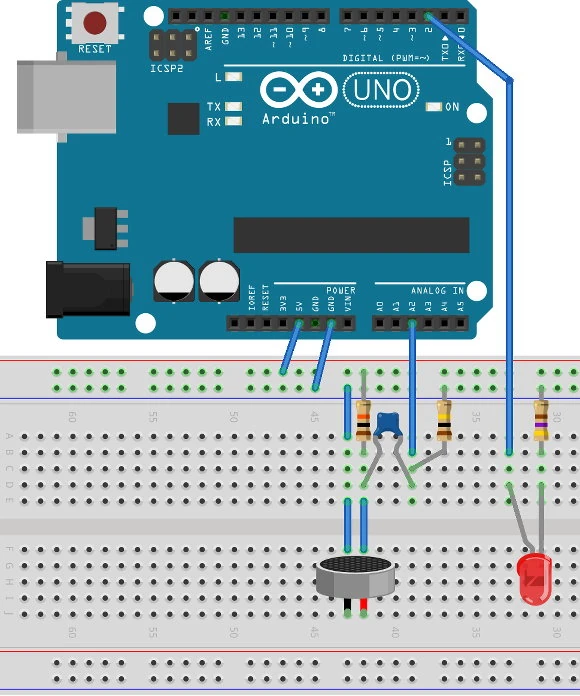
Follow the component placement and jumper wire connections to assemble the circuit on a solderless breadboard. Step-by-step build instructions for beginners follow this section below. The subsections below are circuit checks if you are building the circuit directly from the circuit diagram.
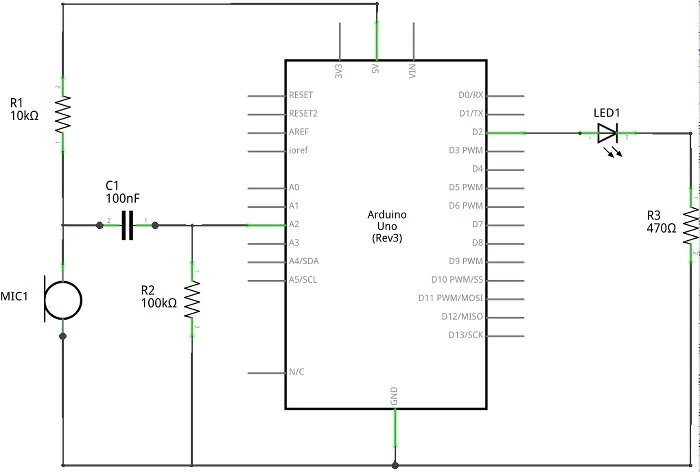
Use the schematic to check the electrical connections between the microphone, resistors, capacitor, LED, and Arduino pins.
Before connecting the components, check the following wiring details.
Connecting the Arduino Uno to the Breadboard
Position the breadboard horizontally, with one set of power rails along the top and the other set along the bottom.
Connect the Arduino Uno’s 5V pin to the positive power rail at the top of the breadboard. Connect an Arduino GND pin to the corresponding ground rail.
These connections provide power and a common ground reference for the microphone and the rest of the circuit.
Connecting the LED to the Arduino Clap Switch
The LED connects to digital pin 2, also labeled D2 in the circuit diagram, through a 470Ω series resistor.
Connect the LED and resistor in series between D2 and GND. The LED’s anode, usually the longer lead, connects to pin D2, while its cathode connects through the 470Ω resistor to GND.
The resistor limits the current flowing through the LED and protects both the LED and the Arduino output pin.
Connecting the Electret Microphone
The electret microphone connects between the 5V supply and GND through a 10kΩ resistor. The junction between the microphone and the 10kΩ resistor provides the microphone signal for the Arduino.
A 100nF capacitor connects this junction to analog input A2. The capacitor blocks the microphone’s DC bias voltage while allowing changes in the audio signal to reach the analog input.
Connect a 100kΩ resistor between A2 and GND. This resistor provides a DC reference for the analog input and helps prevent it from floating when there is no significant microphone signal.
Important: Electret microphone polarity matters in this circuit. Identify the microphone’s negative terminal before wiring it. On many common electret microphone capsules, the negative terminal is connected to the metal case, but verify this for your particular microphone.
Step-by-Step Guide to Building the Arduino Clap Switch
Follow these steps to assemble the circuit.
Step 1: Connect the Breadboard Power Rails
Connect the Arduino Uno’s 5V pin to the positive rail and GND to the ground rail. Note in the breadboard layout diagram that the positive rail marked by the red line is at the top of the diagram. This means that the very top horizontal power rail of the breadboard is connected to the Arduino 5V pin. The rail below it is the blue negative rail and connects to one of the Arduino GND pins.
Step 2: Install the LED and Resistor
Insert the LED into the breadboard so that its two leads are connected to separate rows.
Connect one end of the 470Ω resistor to the LED cathode pin (the shorter leg or lead). Connect the other end of the resistor to the GND rail. Connect the LED anode pin (the longer leg or lead) to Arduino digital pin 2 through a jumper wire
Check the LED polarity before proceeding.
Step 3: Wire the Microphone and 10kΩ Resistor
Place the electret microphone on the breadboard and connect its negative terminal to GND.
Connect the positive terminal to a one end of a 10kΩ resistor. Connect the other end of the resistor to the 5V rail.
This resistor provides the bias current needed by the electret microphone’s internal circuitry.
Step 4: Connect the Capacitor and 100kΩ Resistor
A ceramic 100nF capacitor is normally nonpolar, so either lead can be used on either side of the circuit.
Insert the 100n capacitor into the breadboard so that its two leads are connected to separate rows. Connect one terminal of the 100nF capacitor to the microphone bias junction (the microphone positive pin or terminal). Connect the other terminal to analog input A2 using a jumper wire.
Connect a 100kΩ resistor between A2 and GND.
Step 5: Check the Connections
Before powering the circuit, verify that:
- The Arduino 5V and GND connections are correct.
- The microphone is connected with the correct polarity.
- The 10kΩ resistor runs between the microphone positive signal pin and 5V.
- The 100nF capacitor connects the microphone junction to the Arduino A2 pin.
- The 100kΩ resistor connects A2 to GND.
- The LED is connected to D2 and its series resistor connects to GND.
Check for misplaced wires and accidental shorts between the power rails.
Arduino Clap Switch Code
Once the circuit is assembled, upload the following sketch to the Arduino Uno.
The program reads the analog value from A2. If the value exceeds the threshold of 10, it toggles the LED state. A short delay helps prevent one clap from immediately triggering the circuit multiple times.
//---------------------------------------------------------------------
// Program:      Arduino Clap Switch
//
// Description:  Switches an LED on or off when a clap is detected.
//               Electret microphone connected to A2.
//               LED and series resistor connected to D2.
//
// Starting Electronics
// https://startingelectronics.org/arduino-clap-switch/
//---------------------------------------------------------------------

void setup()
{
  Serial.begin(9600);   // Used to monitor microphone readings
  pinMode(2, OUTPUT);   // LED connected to digital pin 2
}

void loop()
{
  int analog_val;                  // Stores the analog value from pin A2
  static bool led_state = false;   // Initial LED state is off

  analog_val = analogRead(A2);

  if (analog_val > 10)  // Clap detection threshold
  {
    // Toggle the LED state
    if (led_state)      // LED state is true
    {
      led_state = false;
      digitalWrite(2, LOW);
    }
    else                // LED state is false
    {
      led_state = true;
      digitalWrite(2, HIGH);
    }

    Serial.println(analog_val);  // Display detected value
    delay(50);                   // Allow the clap noise to subside
  }
}The code uses the Arduino Uno’s built-in analog-to-digital converter to read the microphone signal. The analogRead(A2) function returns an integer value from 0 to 1023.
When the reading is greater than 10, the program changes the LED state. The static variable led_state retains its value between calls to loop(), allowing the program to remember whether the LED is on or off.
This is the main feature that makes the circuit an Arduino clap on clap off light rather than a circuit that simply turns the LED on whenever a sound is detected.
Understanding the Clap Detection Threshold
The following line determines whether the Arduino responds to a sound:
if (analog_val > 10)The number 10 is the trigger threshold. It determines how large the analog reading must be before the program changes the LED state.
- A lower threshold makes the circuit more sensitive, but it can also respond to unwanted background noise.
- A higher threshold makes the circuit less sensitive, helping to prevent false triggers.
- The best value depends on the microphone, the circuit wiring, the room, and the distance between the microphone and the sound source.
The value of 10 is a starting point, not a universal setting for every microphone.
Uploading the Sketch to the Arduino Uno
To upload the program:
- Connect the Arduino Uno to your computer with a USB cable.
- Open the Arduino IDE.
- Create a new sketch and paste in the code.
- Select the appropriate Arduino Uno board and serial port.
- Click Upload.
- Open the Serial Monitor if you want to observe the readings printed by the program.
The LED should respond to claps once the sketch is running and the microphone signal exceeds the threshold.
Testing Your Arduino Clap Switch
After uploading the sketch, test the circuit in a quiet room.
Start with the LED switched off. Clap your hands near the microphone and check whether the LED turns on. Clap again and check whether it turns off.
Repeat the test several times. Try clapping from different distances to see how the circuit responds.
If the LED switches unexpectedly, or if the circuit does not respond to claps, adjust the threshold and check the wiring.
Using the Serial Monitor to Test the Microphone
The Serial Monitor helps you investigate how the microphone responds to sound.
Set the Serial Monitor to 9600 baud, matching the Serial.begin(9600) statement in the sketch.
The program prints the analog reading when the threshold is exceeded. These readings can help you determine whether the microphone is detecting a clap.
For more detailed testing, you can temporarily modify the program to print every analog reading. Replace the relevant section of loop() with the following diagnostic code:
void loop()
{
  int analog_val = analogRead(A2);

  Serial.println(analog_val);

  delay(10);
}This temporary code only monitors the analog input. It does not toggle the LED. Use it to observe how the readings change when you clap, then restore the original program to operate the switch.
How the Arduino Clap Switch Circuit Works
The circuit uses a microphone, two resistors associated with the analog input and microphone bias, a coupling capacitor, and the Arduino’s analog-to-digital converter.
Understanding the function of each part makes this project more useful as a learning exercise.
The Electret Microphone
An electret microphone converts sound pressure into a small electrical signal.
The microphone capsule contains an internal transistor that requires a bias current. The 10kΩ resistor provides this current from the 5V supply.
When you clap, the sound pressure changes rapidly. These changes produce a small varying voltage at the microphone’s output.
The 100nF Coupling Capacitor
The 100nF capacitor transfers the changing microphone signal to A2 while blocking the steady DC voltage at the microphone bias junction.
Without the capacitor, the microphone’s DC bias could affect the voltage applied to the analog input.
The capacitor therefore helps separate the microphone’s audio signal from its DC operating voltage.
The 100kΩ Pull-Down Resistor
The 100kΩ resistor connects A2 to GND. This configures the resistor as a “pull-down” resistor because it pulls analog pin 2 down to GND.
An Arduino analog input has a high input impedance. Without a suitable reference, the input can become susceptible to unwanted electrical noise and unpredictable readings.
The pull-down resistor establishes a DC reference at ground while allowing the changing microphone signal to appear at A2.
The input does not necessarily read exactly zero in a real circuit. Noise, component tolerances, and the microphone signal can cause the readings to vary.
The Arduino Analog Input
The Arduino Uno uses a 10-bit analog-to-digital converter. With its default reference based on the 5V supply, analog input readings nominally range from 0 to 1023.
The Arduino reads the voltage at A2 and compares the resulting number with the threshold in the sketch.
The circuit does not include a dedicated microphone amplifier. Consequently, the signal may be small, and the threshold may need adjustment for reliable operation.
The LED Output
Digital pin 2 (D2) controls the LED through the 470Ω resistor.
When the sketch writes HIGH to D2, current flows through the LED and its series resistor, so the LED lights. When the sketch writes LOW, the LED turns off.
The program stores the LED state in a variable and reverses it whenever a qualifying sound is detected.
Tips for the Arduino Clap Switch
These practical tips can help you get better results from your Arduino clap switch.
1. Adjust the Detection Threshold
If the LED responds to normal conversation or other background noise, increase the threshold. If it fails to respond to claps, try lowering the threshold.
Use the Serial Monitor to compare readings in a quiet room with readings produced by a clap. Select a threshold that separates the two as reliably as possible.
2. Position the Microphone Carefully
Place the microphone where it can receive the sound clearly. Avoid mounting it directly against a vibrating surface, and keep it away from sources of continuous noise.
Test the circuit at the distance from which you expect to operate it.
3. Keep the Wiring Short
Long jumper wires can pick up electrical interference. Keep the connections between the microphone, capacitor, pull-down resistor, and A2 as short as practical.
A tidy breadboard layout also makes wiring mistakes easier to identify.
4. Check the Microphone Polarity
Electret microphones are polarized. Reversing the connections can prevent the microphone from operating correctly and may damage some types of microphone.
Check the manufacturer’s information or the markings on the component before connecting it.
5. Understand the Limitations of the Basic Code
The example uses a simple threshold comparison and a 50ms delay. It is suitable for demonstrating the principle, but it is not a complete sound-recognition system.
A loud tap, a dropped object, or another sudden sound could also trigger the LED. Furthermore, the delay does not guarantee that every clap produces exactly one trigger.
For more reliable operation, consider adding a longer lockout period, filtering the signal, or using a circuit that detects individual sound peaks.
6. Improve the Circuit with a Microphone Amplifier
If the microphone is not sensitive enough, a suitable microphone amplifier can increase the signal before it reaches the Arduino.
An adjustable amplifier would allow you to control sensitivity without relying entirely on the software threshold. However, the amplifier output must be designed to remain within the Arduino analog input’s permitted voltage range.
These improvements can turn the basic circuit into a more dependable Arduino clap light for further experimentation.
Did You Know?
A clap switch is an example of a sound-activated control system. Similar principles have been used in electronic demonstrations, novelty devices, and hands-free control circuits.
Sound-activated circuits do not necessarily recognize clapping specifically. A basic circuit like this one detects a sufficiently large change in the microphone signal, which means other sudden sounds can produce the same response.
An Arduino makes this kind of project easier to experiment with because the detection threshold and response can be changed in software. Instead of modifying the hardware every time you want to test a different setting, you can edit a number or change the program’s logic.
The same idea can be extended to other DIY Arduino projects for beginners, including sound-level indicators, simple noise alarms, and projects that respond to taps or other brief sounds.
Troubleshooting the Arduino Clap Switch
If your Arduino clap switch does not work as expected, use the following table to identify likely causes.
| Problem | Possible Cause | What to Check |
|---|---|---|
| LED never turns on | Incorrect wiring or insufficient microphone signal | Check the circuit and lower the threshold temporarily |
| LED stays on | Repeated triggers or incorrect LED wiring | Check the LED connections and inspect the analog readings |
| LED responds to background noise | Threshold is too low | Increase the threshold and test in a quieter room |
| LED responds only to very loud claps | Microphone signal is too small | Move closer to the microphone or consider an amplifier |
| Serial Monitor shows no output | No threshold crossings or incorrect serial settings | Select 9600 baud and test with louder claps |
| Readings vary unpredictably | Loose connections or electrical interference | Shorten wires and check the pull-down resistor |
| One clap causes several changes | Repeated threshold crossings | Add a longer lockout interval or implement edge and peak detection |
If the LED never responds, check the circuit connections before changing the code. A misplaced capacitor or an incorrectly connected microphone can prevent the Arduino from receiving a useful signal.
Frequently Asked Questions
What is an Arduino clap switch?
An Arduino clap switch is an electronic circuit that uses a microphone to detect sound and an Arduino to control an output. In this project, each qualifying clap changes the state of an LED, switching it on or off.
Can I build an Arduino clap switch with an Arduino Uno?
Yes. The Arduino Uno is suitable because it has analog inputs for reading the microphone signal and digital outputs for controlling the LED. The circuit uses A2 to read the microphone signal and D2 to control the LED. A2 is analog input 2, and D2 is digital pin 2 of the Arduino Uno.
Is this an easy Arduino project for beginners?
Yes. It is an easy Arduino project because it uses a small number of common components, a solderless breadboard, and a short sketch. It also introduces several useful concepts, including analog input, digital output, current-limiting resistors, and conditional statements.
How does an Arduino clap on clap off light work?
An Arduino clap on clap off light uses software to remember the current state of an LED. When the Arduino detects a sound that exceeds its threshold, it changes the state from on to off or from off to on.
Why does my Arduino clap switch respond to other sounds?
The basic program checks the size of the microphone reading, not the identity of the sound. A tap, a loud voice, or another sudden noise may exceed the threshold and trigger the LED.
A more advanced design could analyze the signal’s timing or characteristics, but reliable sound recognition requires more than a simple threshold comparison.
How do I adjust the sensitivity of the Arduino clap switch?
Change the threshold in the line if (analog_val > 10). Increasing the number generally makes the circuit less sensitive, while decreasing it makes the circuit more sensitive.
Use the Arduino Serial Monitor to observe the readings and choose a threshold appropriate for your microphone and environment.
Can I use a different LED or resistor?
Yes. You can use a different LED, provided you retain an appropriate series resistor. A 470Ω resistor is a suitable starting point for many standard LEDs powered from an Arduino Uno digital output.
Always ensure the current remains within the ratings of both the LED and the Arduino output pin.
Can I use this circuit to control a room light?
The basic circuit is designed to control a small LED, not a mains-powered room light. To control a larger light, you would need a properly rated driver, relay, or other switching interface, along with suitable electrical isolation and enclosure arrangements.
Mains electricity can cause serious injury or death. Do not connect a mains-powered light directly to an Arduino or an unprotected breadboard.
What other DIY Arduino projects for beginners can I try?
After building this circuit, you could try an LED blinking project, a push-button-controlled LED, a light-dependent resistor circuit, or a simple temperature-monitoring project.
These projects build on the same fundamental skills and help you become more comfortable using the Arduino Uno, breadboards, electronic components, and Arduino programming.
Conclusion
This Arduino clap switch project demonstrates how a microphone, a few basic components, and an Arduino Uno can be combined to create a sound-activated LED. By building the circuit on a breadboard, uploading the sketch, and adjusting the detection threshold, you can create an Arduino clap on clap off light that changes state whenever a sufficiently strong sound is detected.
The project is an easy Arduino project for learning about analog inputs, digital outputs, and simple control logic. It is also a useful starting point for more advanced DIY Arduino projects for beginners, such as sound-level detectors and noise-activated devices.
Once the basic circuit is working, experiment with different thresholds, microphone positions, and software improvements to understand how sound-activated electronics can be made more reliable.