
An Arduino tone project is a simple way to learn how to generate musical notes with an Arduino board. In this beginner-friendly project, the Arduino plays a short melody when it is powered up or reset, then plays the tune again whenever you press a push-button switch. You can build the circuit using either an 8-ohm loudspeaker or a plain piezo disc, and the same Arduino sketch works with both options.
What Is Arduino Tone and How Does It Work?
Arduino tone is a method of generating sound by producing a square-wave signal at a selected frequency on a digital output pin. The frequency determines the musical pitch, allowing an Arduino to play individual notes and combine them into a melody.
The Arduino’s built-in tone() function makes this possible without requiring a separate sound-generation circuit.
In this project:
- The Arduino plays a tune automatically when it starts.
- A push-button connected to digital pin 2 lets you replay the tune.
- A loudspeaker or piezo disc connected to digital pin 8 produces the sound.
- An array in the Arduino sketch stores the musical notes.
- A second array specifies the duration of each note.
The project is useful for learning about digital inputs, output signals, functions, arrays, timing, and the Arduino tone function.
How the Arduino Tune Replay Project Works
When you power up the Arduino or reset it, the program starts and plays a short melody adapted from a guitar study by Sor.
After the melody finishes, the Arduino waits for you to press the push-button. Pressing the button makes the program play the melody again. The following video demonstrates the working project.
The project uses two digital pins:
| Arduino Pin | Connection | Purpose |
|---|---|---|
| Digital pin 2 | Push-button switch | Detects a button press |
| Digital pin 8 | Loudspeaker or piezo disc | Generates musical notes |
The push-button uses the Arduino’s internal pull-up resistor, so you do not need to add an external pull-up resistor.
The program uses INPUT_PULLUP, which means the input normally reads HIGH. When you press the button, the input is connected to GND and reads LOW.
The Arduino detects the button press by checking whether the input is LOW.
Building the Arduino Tone Project
Hardware Requirements
You will need the following components to build the project.
| Component | Quantity | Notes |
|---|---|---|
| Arduino Uno or compatible board | 1 | Other compatible Arduino boards may also work |
| Solderless breadboard | 1 | For assembling the circuit |
| Jumper wires | As required | For connecting the components |
| Push-button switch | 1 | A short wire can be used temporarily instead |
| 8-ohm loudspeaker or plain piezo disc | 1 | Choose one of the two sound-output options |
| 10µF capacitor | 1 | Required for the loudspeaker version shown in this project |
You will also need a USB cable to connect the Arduino to your computer and upload the sketch.
Choosing a Loudspeaker or Piezo Disc
You can build the Arduino tone circuit with either an 8-ohm loudspeaker or a piezo disc. Both produce sound, but there are some important differences.
Loudspeaker version
An 8-ohm loudspeaker generally produces a fuller, louder sound than a small piezo disc in this type of circuit. The loudspeaker version uses a 10µF capacitor in series with the speaker.
A capacitor blocks steady direct current, but it does not limit the current flowing through the speaker during sound generation. For additional protection, a suitable series resistor or a small audio driver circuit can be used. Follow the component connections shown in the circuit diagram.
Piezo disc version
A plain piezo disc is suitable for generating simple musical tones. It has a predominantly capacitive load and normally draws much less current than an 8-ohm loudspeaker.
No series capacitor is required for the piezo version shown here.
Make sure you purchase a plain piezo disc rather than an active buzzer. An active buzzer contains built-in electronics that generate a buzzing sound when power is applied. A plain piezo disc relies on an external signal, such as the one generated by the Arduino tone() function, to produce sound at different pitches.
Some plain piezo elements are sold inside plastic housings, so check the product specifications before buying one.
Arduino Tone Circuit Diagrams and Breadboard Layouts
There are two versions of this project: one using a loudspeaker and the other using a piezo disc. Both versions use the same Arduino sketch, so you only need to choose the hardware arrangement that suits the components you have available.
Loudspeaker Circuit for Arduino Tone
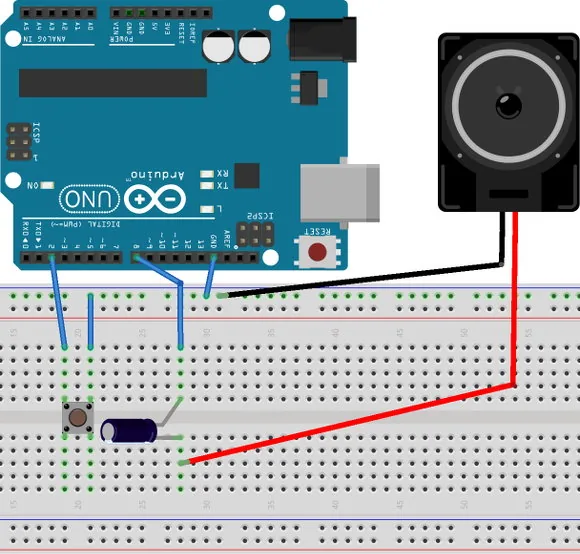
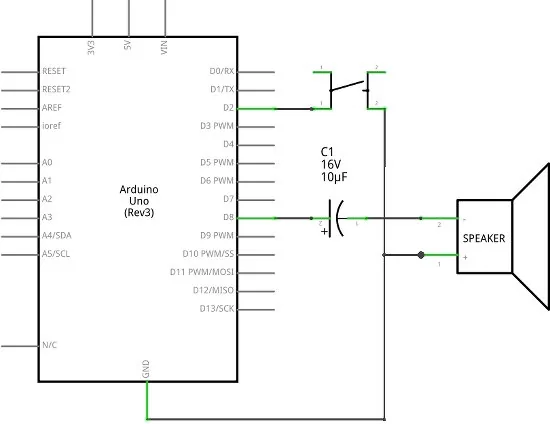
The loudspeaker version uses an 8-ohm speaker connected to digital pin 8 through a 10µF capacitor, as shown in the circuit diagram. The push-button connects digital pin 2 to GND when pressed.
The capacitor provides DC blocking, while the speaker converts the changing electrical signal into sound.
Breadboard wiring connections for the loudspeaker version of the circuit are shown in the image below, followed by the circuit diagram.
Piezo Circuit for Arduino Tone
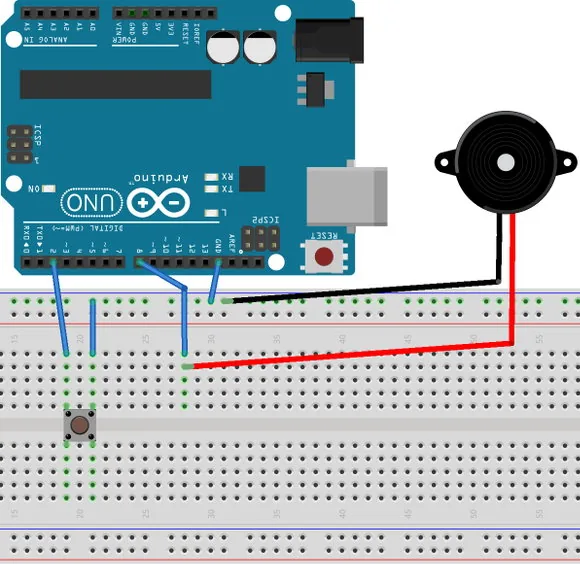
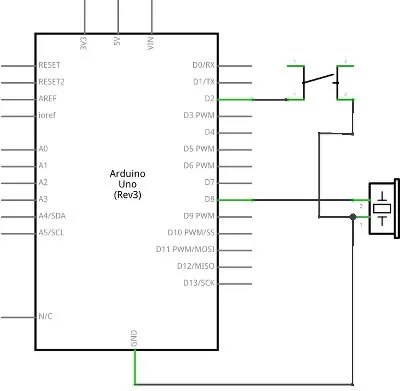
The piezo version uses a plain piezo disc connected to digital pin 8 and GND. The push-button remains connected between digital pin 2 and GND.
Because the piezo disc has a predominantly capacitive load, the additional series capacitor used in the loudspeaker version is not needed.
Checking Your Connections
Before connecting the Arduino to your computer, check the following:
- The push-button connects digital pin 2 to GND when pressed.
- The sound-producing component connects to digital pin 8 as shown in the relevant circuit diagram.
- The loudspeaker version includes its series capacitor.
- The piezo version uses a plain piezo disc, not an active buzzer.
- The Arduino GND connection is connected as shown in the circuit diagram.
- There are no short circuits between the Arduino’s 5 V supply and GND.
Once you have checked the wiring, you can upload the sketch.
Arduino Tone Sketch Code
The following Arduino sketch plays a melody when the board starts and replays it when you press the push-button.
The melody is stored in an array, with a corresponding array containing the duration of each note. The PlayTune() function steps through these arrays and uses the Arduino tone function to generate each note.
Copy the complete sketch into a new window in the Arduino IDE.
// ------------------------------------------------------------
// Program:       tune_replay
// Description:   Plays a tune at startup and replays it when
//                a push-button connected to pin 2 is pressed.
// Sound output:  Loudspeaker or plain piezo disc on pin 8
// Starting Electronics
// https://startingelectronics.org/arduino-tone/
// ------------------------------------------------------------

// Note frequencies in hertz
#define NOTE_C3  131
#define NOTE_CS3 139
#define NOTE_D3  147
#define NOTE_DS3 156
#define NOTE_E3  165
#define NOTE_F3  175
#define NOTE_FS3 185
#define NOTE_G3  196
#define NOTE_GS3 208
#define NOTE_A3  220
#define NOTE_AS3 233
#define NOTE_B3  247
#define NOTE_C4  262
#define NOTE_CS4 277
#define NOTE_D4  294
#define NOTE_DS4 311
#define NOTE_E4  330
#define NOTE_F4  349
#define NOTE_FS4 370
#define NOTE_G4  392
#define NOTE_GS4 415
#define NOTE_A4  440
#define NOTE_AS4 466
#define NOTE_B4  494

// Notes in a melody adapted from a guitar study by Sor
int melody[] = {
  NOTE_G3, NOTE_G3, NOTE_E3, NOTE_C4, NOTE_B3,
  NOTE_B3, NOTE_A3, NOTE_D4, NOTE_C4, NOTE_C4,
  NOTE_B3, NOTE_G4, NOTE_F4, NOTE_F4, NOTE_E4,
  NOTE_C4, NOTE_A3, NOTE_G3, NOTE_E3, NOTE_C4,
  NOTE_B3, NOTE_B3, NOTE_A3, NOTE_D4, NOTE_C4,
  NOTE_C4, NOTE_B3, NOTE_E4, NOTE_D4, NOTE_C4
};

// Note lengths: 4 = quarter note, 8 = eighth note,
// 2 = half note
int noteDurations[] = {
  4, 4, 4, 4, 4, 4, 4, 4, 4, 4,
  4, 4, 4, 4, 4, 4, 4, 4, 4, 4,
  4, 4, 4, 4, 4, 4, 4, 4, 4, 2
};

const int buttonPin = 2;
const int soundPin = 8;

const int numberOfNotes =
  sizeof(melody) / sizeof(melody[0]);

void setup() {
  // Use the internal pull-up resistor for the button
  pinMode(buttonPin, INPUT_PULLUP);

  // Play the tune when the Arduino starts
  PlayTune();
}

void loop() {
  // The button reads LOW when pressed
  if (digitalRead(buttonPin) == LOW) {
    PlayTune();

    // Wait for the button to be released
    // before allowing another replay
    while (digitalRead(buttonPin) == LOW) {
      delay(10);
    }

    // Short delay to help prevent switch bounce
    delay(30);
  }
}

// Function that plays the complete tune
void PlayTune() {
  for (int thisNote = 0;
       thisNote < numberOfNotes;
       thisNote++) {

    // Calculate the duration of the note
    int noteDuration =
      1500 / noteDurations[thisNote];

    // Generate the note on digital pin 8
    tone(soundPin, melody[thisNote], noteDuration);

    // Leave a short gap between notes
    int pauseBetweenNotes =
      noteDuration * 1.30;

    delay(pauseBetweenNotes);

    // Stop the tone before playing the next note
    noTone(soundPin);
  }
}How to Upload the Arduino Tone Sketch
Follow these steps to load the program onto your Arduino board.
- Open the Arduino IDE on your computer.
- Create a new sketch.
- Copy the complete program above and paste it into the sketch window.
- Connect the Arduino to your computer using a USB cable.
- Select the correct Arduino board and port from the IDE menus.
- Click Verify to compile the sketch and check for errors.
- Click Upload to transfer the program to the Arduino.
When the upload finishes, the Arduino should begin playing the tune automatically. Press the push-button to hear it again.
If you are using the loudspeaker version, the sound should generally be louder than with a small piezo disc.
Understanding the Arduino Tone Function
The tone() function is a built-in Arduino function that generates a square-wave signal at a specified frequency on a digital output pin.
Its basic syntax is:
tone(pin, frequency);You can also specify how long the tone should play:
tone(pin, frequency, duration);If no duration is passed to the tone() function, then the tone will continue to play until the noTone() function is called.
The three arguments are:
| Argument | Description | Example |
|---|---|---|
pin | Digital output pin used to generate the signal | 8 |
frequency | Frequency of the signal in hertz | 440 |
duration | Duration of the tone in milliseconds | 500 |
For example:
tone(8, 440, 500);This command generates a 440 Hz tone on digital pin 8 for 500 milliseconds. A frequency of 440 Hz corresponds approximately to the musical note A4.
The Arduino tone function generates the electrical signal. The loudspeaker or piezo disc converts that signal into audible sound.
How the Tone Function in Arduino Creates Musical Notes
Different musical notes have different frequencies. A lower frequency produces a lower pitch, while a higher frequency produces a higher pitch.
The sketch defines several note frequencies at the beginning of the program. For example:
| Note | Approximate Frequency |
|---|---|
| C3 | 131 Hz |
| E3 | 165 Hz |
| G3 | 196 Hz |
| C4 | 262 Hz |
| E4 | 330 Hz |
| G4 | 392 Hz |
| A4 | 440 Hz |
These frequencies allow the Arduino to play a sequence of recognizable musical notes.
In the melody array, each note is represented by its corresponding frequency. The program passes each frequency to tone() in turn.
How Note Durations Work
The melody array determines which notes are played, while the noteDurations array determines how long each note lasts relative to the others.
The sketch uses a simple timing calculation:
int noteDuration =
1500 / noteDurations[thisNote];A duration value of 4 produces a note lasting 375 milliseconds. A value of 2 produces a note lasting 750 milliseconds.
These values are based on a reference duration of 1,500 milliseconds rather than a conventional fixed tempo. The final note is therefore longer than the preceding quarter-length notes.
After generating each note, the sketch waits for slightly longer than the note duration:
int pauseBetweenNotes = noteDuration * 1.30;
delay(pauseBetweenNotes);
noTone(soundPin);The additional 30% creates a short gap between successive notes. These gaps help distinguish the notes and make the melody easier to hear.
What Does the PlayTune() Function Do?
The PlayTune() function contains the instructions for playing the entire melody.
Instead of repeating the same sound-generation code in several places, the sketch puts the playback instructions in one function. The program can then call PlayTune() whenever it needs to play the tune.
The function uses a for loop to work through the melody array one note at a time. For each note, it:
- Reads the note frequency from the melody array.
- Reads the corresponding duration from the duration array.
- Calls
tone()to generate the note. - Waits long enough for the note and its gap to finish.
- Calls
noTone()to stop the signal before moving to the next note.
This is a useful example of how functions and arrays can make an Arduino program easier to organize.
Tips for the Arduino Tone Project
The following tips will help you build, test, and modify the project successfully.
1. Check the Type of Sound Device
A plain piezo disc and an active buzzer are not interchangeable in this project. An active buzzer normally produces its own fixed buzzing sound when powered, for example in the Arduino buzzer circuit project, whereas a piezo disc can reproduce the different frequencies generated by the Arduino.
2. Start With the Piezo Version
If you are new to Arduino electronics, the piezo version is a convenient starting point. It requires fewer components and is generally easier to connect.
Once the piezo version works, you can build the loudspeaker version and compare the sound.
3. Use the Correct Pin Numbers
The sketch uses digital pin 2 for the button and digital pin 8 for the sound output. If you change the connections, update the pin definitions in the program to match.
For example, changing const int soundPin = 8; to const int soundPin = 9; moves the sound output to digital pin 9, provided that pin is suitable for your board.
4. Experiment With Different Frequencies
You can experiment with the Arduino tone function by changing the frequency passed to tone().
For example:
tone(8, 262, 500);  // C4
delay(600);

tone(8, 392, 500);  // G4
delay(600);

noTone(8);This short example plays two notes in sequence. Try changing the frequencies to hear how the pitch changes.
5. Change the Melody
The melody is stored in the melody array. You can create your own Arduino melody by replacing the existing note frequencies with different values.
Make sure the duration array contains a matching duration entry for every note. The sketch automatically calculates the number of notes from the melody array, so you can change the number of notes without manually updating the loop limit.
6. Avoid Holding the Button Down
The program waits for the button to be released after playing the tune. This prevents a single long press from repeatedly starting the melody.
The sketch uses a short delay to help reduce the effects of mechanical switch bounce. More advanced projects can use non-blocking timing and a dedicated switch debouncing routine.
7. Remember the Limits of the Arduino Output Pin
An Arduino digital pin is intended for relatively small currents. An 8-ohm speaker can draw more current than is appropriate for direct connection to a digital pin, particularly at higher output levels.
The series capacitor blocks DC, but it does not provide current limiting. If you want a louder or safer speaker output, use an appropriate resistor or transistor-based driver circuit rather than trying to obtain more volume by overloading the Arduino pin.
Did You Know?
The Arduino tone function can do much more than play a short tune.
The Tone Function Can Generate Musical Notes
The function produces a square-wave signal at a selected frequency. By changing the frequency over time, you can create melodies, sound effects, warning tones, and simple audio signals.
The square wave is not the same as a pure sine wave, so the sound may be more buzzy than the corresponding note produced by a conventional musical instrument.
An Arduino Can Play Music Without an Audio File
This project does not store or play a recording. Instead, the program generates each note electronically using its frequency and duration.
That makes it possible to create simple tunes using only a small amount of program code and a sound-producing component.
The Tone Function Does Not Need a Separate Audio Library
For basic tone generation, the Arduino tone() function is available through the standard Arduino environment. You do not need to install a separate music library for this project.
The function is especially useful for beginners because it hides the low-level timing details involved in producing a square-wave signal.
You Can Use Arduino Tone for More Than Music
The same technique can be used in practical electronic projects, including:
- Audible alarms and warning signals.
- Simple electronic games.
- Button feedback sounds.
- Timed alerts.
- Educational projects demonstrating frequency and pitch.
A loudspeaker driver or an appropriate sound-output circuit may be needed for applications requiring greater volume or more advanced audio reproduction.
Troubleshooting the Arduino Tone Project
If your project does not work as expected, check the following common problems.
The loudspeaker and piezo versions use the same software, so troubleshooting should begin with the wiring and sound-producing component before changing the sketch.
| Problem | Possible Cause | What to Check |
|---|---|---|
| No sound at startup | Incorrect wiring or upload failure | Check the pin 8 connections and confirm that the sketch uploaded successfully |
| Button does not replay the tune | Incorrect button wiring | Confirm that pressing the button connects pin 2 to GND |
| A continuous buzz is heard | An active buzzer is being used | Replace it with a plain piezo disc or the specified loudspeaker circuit |
| Sound is too quiet | Piezo output is naturally limited, or the speaker circuit is unsuitable | Check the sound device and consider an appropriate audio driver |
| Melody sounds incorrect | Wrong note frequencies or altered durations | Compare the arrays with the original sketch |
| Arduino resets unexpectedly | Possible short circuit or excessive current draw | Check the wiring and speaker load before powering the circuit again |
| Tune repeats unexpectedly | Button remains pressed or the switch is bouncing | Check the switch wiring and ensure the release-waiting code is present |
Frequently Asked Questions
What is the Arduino tone function?
The Arduino tone() function generates a square-wave signal at a specified frequency on a digital output pin. It can be used to generate individual notes, melodies, and warning sounds through a compatible sound-producing component.
How do I play a melody using Arduino tone?
Store the frequencies of the notes in an array and use a loop to play them one at a time. Call tone() with the output pin, frequency, and duration, then add a suitable pause between notes. This project demonstrates that technique in the PlayTune() function.
Which pin does this Arduino tune project use for sound?
The project uses digital pin 8 for the loudspeaker or piezo disc. The push-button switch is connected to digital pin 2.
Can I use a piezo buzzer instead of a piezo disc?
A passive piezo buzzer may work if it is designed to accept an external tone signal. However, an active buzzer contains an internal oscillator and usually produces its own fixed sound when powered. For this project, use a plain piezo disc or a compatible passive piezo sounder.
Why is a loudspeaker louder than a piezo disc?
The loudness depends on the sound-producing device, its electrical drive, its construction, and its enclosure. A suitable loudspeaker can produce a fuller, louder sound than a small piezo disc, but the Arduino pin must not be overloaded to achieve greater volume.
Can I change the notes in the Arduino melody?
Yes. Edit the melody array to change the sequence of note frequencies. You can also change the noteDurations array to alter the relative lengths of the notes. Keep the two arrays aligned so each note has a corresponding duration.
Does the Arduino tone function work on every Arduino pin?
The tone() function works on digital pins supported by the selected board and core. The available pins and any hardware or timer restrictions can vary between Arduino boards. Check the documentation for your specific board if you change the output pin.
Can the Arduino play multiple tones at the same time?
The standard Arduino tone() function generally generates one tone at a time. Calling it again with another frequency changes the generated tone rather than creating a separate simultaneous musical note. More advanced audio projects require other techniques.
Why does the tune play automatically when the Arduino starts?
The setup() function runs once when the board powers up or resets. This sketch calls PlayTune() inside setup(), so the melody plays automatically before the program enters its main loop().
Conclusion
This Arduino tone project is a practical introduction to generating sound with an Arduino. It combines a simple push-button input with a loudspeaker or piezo disc to create a tune that plays at startup and can be replayed whenever you press the button.
By studying the sketch, you can learn how the Arduino tone function generates different pitches, how arrays store a melody, and how a function can organize a sequence of musical notes. You can also adapt the project to play your own Arduino melody or generate warning sounds for other electronics projects.
Once you have built and tested the circuit, try changing the note frequencies and durations to create your own tune. The same basic technique provides a useful foundation for many beginner Arduino sound projects.
You may also be interested in these other very easy Arduino projects for beginners:
- Arduino Buzzer Circuit: How to Connect an Active Buzzer
- Arduino Clap Switch: Best Easy Clap-On, Clap-Off LED Circuit
- Arduino LED Project: Moving Light Display Beginners Will Love
References
- Arduino Built-in Example: toneMelody
- Arduino
tone()Function Reference - Arduino
noTone()Function Reference